Keeper Password Manager Setup Guide and Training for Business Teams
Originally Published: July 20, 2026
By Tracey Birkenhauer, journalist and Chief Impact Officer, STACK Cybersecurity
By Tracey Birkenhauer, journalist and Chief Impact Officer, STACK Cybersecurity
Originally published March 1, 2025. This Keeper Password Manager guide has been updated to reflect current account setup, KeeperFill, password generation, shared folders, passkeys, enterprise login options, and password security guidance.
Executive Summary
Keeper Password Manager helps businesses create, store, share, and manage passwords inside an encrypted digital vault. Instead of expecting employees to remember dozens of complicated passwords, Keeper can generate a long, unique credential for each account and fill it when needed.
STACK Cybersecurity uses and deploys Keeper Security for internal and client password management. This guide explains how to activate a Keeper account, create records, install KeeperFill, change passwords, use shared folders, store passkeys, and avoid common password-management mistakes. Keeper clients should follow the account invitation and policies established by their administrator rather than creating a separate account outside the company environment.
Passwords remain a common method of authentication despite their security and usability problems. Employees may need credentials for email, accounting software, banking, payroll, customer portals, cloud applications, social media, vendor systems, and industry-specific software.
Remembering a different long password for every account isn't realistic. Without an approved password manager, employees may reuse passwords, save them in web browsers, write them down, store them in spreadsheets, or send them through email and chat.
A business password manager addresses that problem by generating and storing unique credentials in an encrypted vault. Users only need to remember their Keeper master password or authenticate through the company's approved single sign-on (SSO) process.
For a broader explanation of modern password standards, password theft, MFA, and passkeys, read Password Reset: Modern Password Security for Businesses.
What This Keeper Guide Covers
- Activating a Keeper account through a STACK or company invitation
- Creating an individual Keeper account when appropriate
- Understanding master password and enterprise SSO login options
- Creating and organizing records in the Keeper Vault
- Installing and using the KeeperFill browser extension
- Generating and changing strong passwords
- Using shared folders and record permissions
- Storing and using passkeys
- Importing credentials from browsers and other password managers
- Enabling MFA and protecting the Keeper account itself
Why STACK Cybersecurity Uses Keeper
Keeper generates strong, random passwords and gives businesses a controlled way to manage credentials across users, teams, and departments.
Keeper administrators can create teams, manage shared folders, establish security policies, provision users, review password security, and remove access when an employee leaves. Individual users can maintain private records while accessing approved business records shared with them.
Shared folders make it possible to provide access without emailing or messaging the underlying password. Permissions can determine whether a user may view, edit, add, remove, or share records.
Keeper also supports password and passphrase generation, browser autofill, passkeys, secure file attachments, two-factor authentication codes, desktop applications, mobile applications, and enterprise single sign-on options.
A password manager only improves security when people use it consistently. Business passwords should be stored in the approved Keeper vault rather than browsers, spreadsheets, documents, email, chat messages, or personal password-management accounts.
How to Activate Your Keeper Password Manager Account
The correct setup process depends on how Keeper is being deployed. STACK clients and employees should normally begin with the invitation or login instructions provided by STACK Cybersecurity or their company administrator.
Don't create an unrelated personal Keeper account using your business email address when your company has already purchased and configured a managed Keeper environment. Doing so may create a separate vault outside the company's intended administrative structure.
Option 1: Activate a Company-Managed Keeper Account
Look for an invitation from Keeper or instructions from STACK Cybersecurity. Open the invitation and follow the account activation prompts. Depending on the company's configuration, you may be asked to create a master password or sign in through an enterprise identity provider such as Microsoft Entra ID, Okta, or another single sign-on platform.
Enterprise SSO users may not need a separate Keeper master password. Entering your business email address may automatically route you to the company's approved sign-in page.
During onboarding, Keeper may prompt you to install the KeeperFill browser extension, import existing credentials, configure account recovery, approve your device, and enable multi-factor authentication. Complete each step required by your company's Keeper policy.
Option 2: Create an Individual Keeper Account
Only use this option when you've confirmed you aren't being added to a company-managed Keeper environment. Visit the Keeper Web Vault and select the option to create an account. Enter your email address and follow the prompts to create and confirm your master password.
Keeper will send a security verification code to the email address you entered. Enter the code to verify the address and complete account creation. After signing in, follow Keeper's setup prompts to install KeeperFill, import passwords, and configure account recovery.
Video: How to Create a Keeper Account
The following STACK Cybersecurity training video demonstrates the general Keeper account creation process. Keeper's interface and your company's login configuration may differ slightly from what appears in the video.
Create a Strong Keeper Master Password
Users who aren't authenticating through enterprise SSO may be required to create a Keeper master password. This credential protects access to the vault and should never be reused for email, banking, social media, or another website.
Use a long, unique master password or passphrase that you can remember but someone else couldn't reasonably guess. Don't base it on a company name, family member, address, birthday, favorite team, song lyric, common saying, or password used elsewhere.
Follow the length and security requirements displayed during Keeper account creation. Enterprise administrators may enforce requirements that differ from those applied to independent accounts.
Don't write the master password on a note attached to your computer, send it through email, or store it in an unprotected document. Complete Keeper's account recovery setup when it's offered, and follow your company's procedures for obtaining help if you lose access.
Protect Keeper With Multi-Factor Authentication
Your Keeper vault may contain access to many important systems, so the Keeper account itself needs strong protection. Enable multi-factor authentication when it isn't already required by your administrator.
MFA requires another form of verification in addition to the master password. Depending on your company's configuration, available methods may include an authenticator app, security key, Duo, or another approved option.
Employees should immediately report unexpected Keeper approval requests, MFA prompts, security codes, password reset emails, or login alerts. Never approve a prompt you didn't initiate.
Learn why MFA matters in Understanding Multi-Factor Authentication.
Understanding the Keeper Vault
The Keeper Vault is where passwords, usernames, website addresses, notes, files, passkeys, and other protected information are stored. Each saved item is called a record.
Keeper supports different record types for logins, payment cards, bank accounts, files, software licenses, server credentials, secure notes, and other information. Use the record type that best matches what you're saving.
How to Create a Login Record
- Sign in to the Keeper Web Vault, desktop application, mobile application, or KeeperFill extension.
- Select Create New and choose Record.
- Select the appropriate record type. Login is generally the default.
- Enter a clear title that identifies the account.
- Add the username or email address associated with the account.
- Enter the existing password or use Keeper's password generator to create a new one.
- Add the correct website address so KeeperFill can match the record to the login page.
- Save the record in the appropriate folder.
Use clear, consistent record names. For example, Microsoft 365 Admin is more useful than a vague title such as Email. Avoid creating duplicate records when an approved record already exists.
Install the KeeperFill Browser Extension
KeeperFill is Keeper's browser extension for saving and filling passwords, usernames, passkeys, and other record information. KeeperFill is available for commonly used browsers, including Chrome, Microsoft Edge, Firefox, Safari, Opera, and other Chromium-based browsers.
Install KeeperFill using Keeper's onboarding prompt, the official Keeper download page, or the browser deployment process established by your company. Don't install similarly named extensions from an unknown publisher.
After installation, sign in using the same business email address and approved login method used for the Keeper Vault. Enterprise users may be routed through their company's SSO provider.
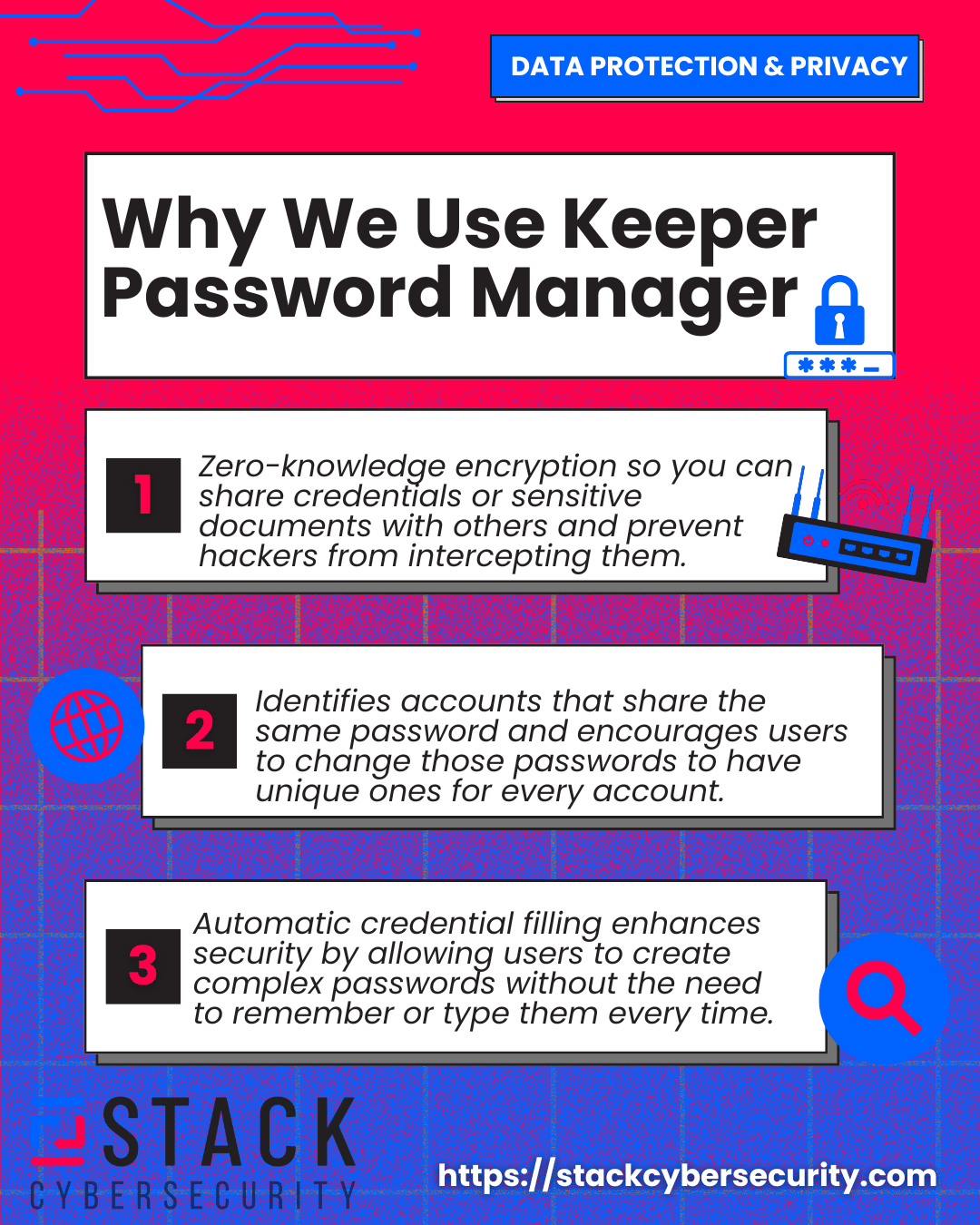
KeeperFill can match saved records to legitimate websites, fill credentials, save new login records, generate passwords and passphrases, and store or use passkeys on supported services.
How to Import Existing Passwords Into Keeper
Keeper can import credentials from supported browsers and password managers. The available import method depends on the browser, application, operating system, and policies configured by your administrator.
Before importing, make sure you're signed into the correct company-managed Keeper account. Importing business credentials into the wrong vault could place them outside the company's access controls and offboarding process.
Review the imported records after migration. Delete duplicates, correct website addresses, improve unclear record names, move business records into the appropriate folders, and replace weak or reused passwords.
Importing credentials doesn't automatically remove them from the original browser or password manager. Once you verify that the records work correctly in Keeper, follow STACK's instructions for removing saved passwords from web browsers.
Don't Delete First and Verify Later
Confirm that passwords were successfully imported into the correct Keeper vault and test access to important accounts before deleting the original browser-stored copies.
How to Generate a Strong Password With Keeper
Keeper can generate a long, random password for each account. This prevents employees from relying on predictable patterns or reusing a favorite password across several systems.
- Open a new or existing record.
- Select the password generator, usually represented by a dice icon.
- Choose a password or passphrase.
- Adjust the length and allowed characters when necessary.
- Select the generated credential and save the record.
Enterprise administrators may establish password-generation requirements for managed users. Those settings can control minimum length and the types of characters Keeper generates.
Generating a password inside Keeper doesn't automatically change the password on the website. You must complete the website's password-change process and make sure the new credential is saved in Keeper.
How to Change Passwords With KeeperFill
Long, randomly generated passwords help protect accounts from guessing, reuse, credential stuffing, and other password attacks. KeeperFill can simplify the process of replacing weak or exposed credentials.
Visit the account's legitimate password-change page. When supported, KeeperFill can enter the current password, generate a replacement, fill the new password fields, and update the corresponding vault record.
Always confirm that the website accepted the change before closing the page. Test the new login and confirm the updated password appears in the correct Keeper record.
Video: Change a Password With KeeperFill
How Shared Folders Work in Keeper
Shared folders allow approved Keeper users and teams to access a group of business records. A shared folder can be useful for department accounts, vendor portals, marketing platforms, administrative tools, or other systems used by more than one authorized person.
Access should follow the principle of least privilege. Give employees only the permissions they need to perform their responsibilities.
Depending on how a folder is configured, a user may be allowed to:
- View records
- Edit records
- Add new records
- Remove records
- Share records with other users
- Manage users and folder permissions
Don't create a shared folder simply because several people might want access. Confirm that the account is intended to be shared, that each person has a business need, and that sharing doesn't violate the service provider's terms.
When an employee changes roles or leaves, remove access through the company's established offboarding process. Don't rely only on changing one shared password.
How to Store and Use Passkeys in Keeper
Passkeys are a newer authentication method designed to reduce dependence on passwords. On websites and applications that support them, Keeper can save and use passkeys through the Keeper Vault and KeeperFill.
When a supported website offers to create a passkey, Keeper may prompt you to save it in the vault. The next time you visit the service, KeeperFill can provide the saved passkey for authentication.
Don't create a business passkey in an unmanaged personal account or device credential store without confirming your company's policy. The business needs a reliable way to manage access, recovery, and offboarding.
Review Keeper's current passkey user guide for supported platforms and setup instructions.
Keeper Password Manager Best Practices
- Use your company-managed Keeper account for business credentials.
- Never reuse the Keeper master password on another account.
- Enable MFA and account recovery using approved methods.
- Install KeeperFill only from an official or company-managed source.
- Create a unique password for every account.
- Use shared folders instead of sending passwords through email or chat.
- Review shared-folder permissions regularly.
- Don't store business passwords in personal vaults.
- Remove migrated passwords from browsers after verifying the import.
- Report unexpected login, device approval, and MFA requests.
- Don't export the vault unless there's an approved business reason.
- Follow company offboarding procedures when access must be removed.
Common Keeper Mistakes to Avoid
Creating a Separate Account With a Business Email
An employee may accidentally create an independent Keeper account before accepting the company's invitation. Confirm the correct activation process with STACK Cybersecurity or your administrator before creating an account.
Saving the Same Password in Keeper and the Browser
Leaving credentials in the browser after migrating them to Keeper preserves the original risk. Test the Keeper records first, then remove browser-stored copies using the approved process.
Sharing Records Too Broadly
A shared folder shouldn't become a place where everyone can access every credential. Limit membership and permissions to people with a legitimate business need.
Changing the Keeper Record but Not the Website
Editing a password inside the vault doesn't necessarily change it on the corresponding website. Complete the password-change process on the website and verify that the Keeper record matches.
Ignoring Unexpected Approval Requests
An unexpected device approval, security code, reset message, or MFA prompt may indicate that someone is attempting to access the account. Deny the request and report it immediately.
Frequently Asked Questions (FAQs) About Keeper Password Manager
What is Keeper Password Manager?
Keeper is a password-management platform that creates and stores credentials in an encrypted digital vault. It supports password generation, browser autofill, record sharing, shared folders, passkeys, secure files, enterprise administration, and several authentication options.
Should I create my own Keeper account or wait for an invitation?
Employees and STACK clients should generally wait for the company invitation or login instructions. Creating an independent account with your business email address may place the vault outside the company's intended administrative environment.
Do all Keeper users need a master password?
No. Users with a traditional Keeper login generally create a master password. Enterprise users may instead authenticate through their company's single sign-on provider and may not need a separate Keeper master password.
What happens if I forget my Keeper master password?
Recovery depends on the account type, recovery settings, and company policies. Complete Keeper's account recovery setup during onboarding. Business users should contact their Keeper administrator or STACK Cybersecurity rather than repeatedly attempting to create a new account.
What is KeeperFill?
KeeperFill is Keeper's browser extension. It can save and fill usernames, passwords, passkeys, and other record information on supported websites. It also includes password and passphrase generation tools.
Does generating a password in Keeper change it on the website?
Not by itself. You must visit the website's password-change page and replace the old credential. KeeperFill can assist with the process on supported websites and update the corresponding vault record.
Can Keeper import passwords from my browser?
Keeper supports several browser and password-manager import methods. The available options depend on the device, browser, application, and enterprise policies. Verify the import before deleting the browser-stored passwords.
Does importing passwords into Keeper remove them from the browser?
No. Importing credentials doesn't necessarily delete the original copies. After confirming that the Keeper records work, remove the saved passwords from the browser using STACK's browser-password removal guide.
Can Keeper securely share a password with another employee?
Yes. Records and shared folders can be made available to approved users and teams with defined permissions. This is safer and easier to manage than sending a password through email, text, or chat.
Can Keeper store passkeys?
Yes. Keeper supports creating, storing, and using passkeys for compatible websites and applications. Support varies by platform, operating system, browser, and the website being accessed.
Should I store personal passwords in my business Keeper vault?
Follow your company's policy. Business and personal credentials should generally remain separated so the company can manage its records, access controls, transfers, and offboarding without affecting an employee's personal accounts.
Can STACK Cybersecurity help deploy and configure Keeper?
Yes. STACK Cybersecurity helps clients deploy Keeper, activate accounts, organize shared folders, migrate credentials, remove passwords stored in browsers, configure access, train users, and support secure employee onboarding and offboarding.
Need Help With Keeper Password Manager?
STACK Cybersecurity offers live Keeper onboarding and support for clients. The team can help activate accounts, install KeeperFill, import credentials, organize records, set up shared folders, remove passwords from browsers, configure MFA, and resolve access problems.
Current STACK clients can submit a support ticket requesting Keeper assistance. You can also call (734) 744-5300 or contact STACK Cybersecurity.